Drag it anywhere.
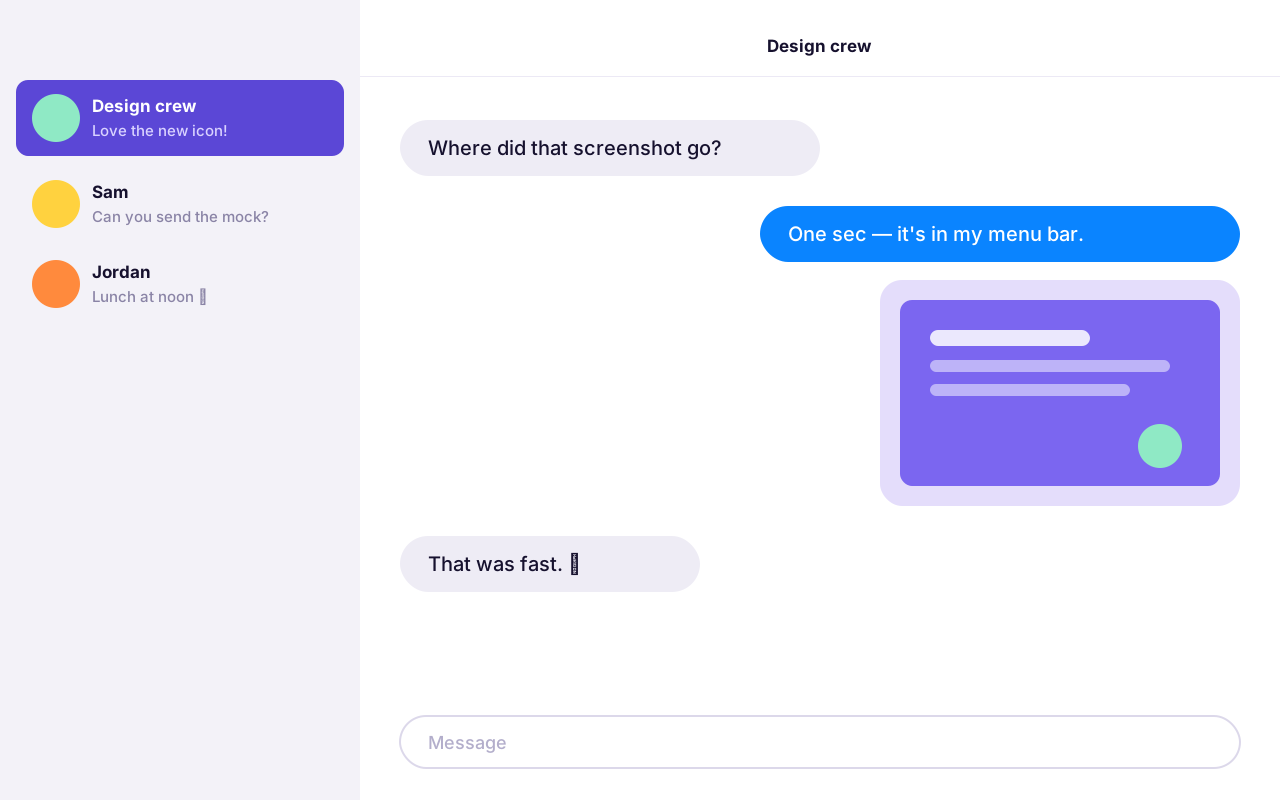
Pull a Cap straight into Messages, Mail, Slack, Figma, or a Finder window. It arrives as the full-resolution file.
Caps lives in your menu bar and keeps every recent screenshot close — ready to preview, copy, drag, pin, and mark up in a moment. Nothing ever leaves your Mac.

No Caps match.
Live demo. Hover a Cap to copy it, drag it into another app, or click the list and use↑↓ ↩ Space ⌘FLive demo. Tap a Cap to copy it.
⇧⌘4 or any tool you like. Nothing new to learn.
New screenshots appear in the menu bar the moment they're saved.
Copy, drag, share, pin, or mark it up — then get back to what you were doing.
No more digging through the Desktop or a Downloads-shaped junk drawer. Every screenshot you take shows up in Caps, ready for whatever comes next.
Pull a Cap straight into Messages, Mail, Slack, Figma, or a Finder window. It arrives as the full-resolution file.
Copy, share, annotate, rename, pin the keepers, reveal in Finder — or send it to the Trash.
Press ⌘F and start typing. Filenames filter instantly — rename a Cap and it's easy to find later.
Arrows, boxes, freehand, and text in seven colors, with undo and redo. Save a Copy writes a new full-resolution PNG — the original is never touched.
Tap Space — or double-click — for a big, sharp preview without opening another app.
Clear Caps tidies the list without touching a single file. Changed your mind? Restore brings them all back.
Retention hides older Caps from view — files stay safely in their folder. Pins are exempt.
One shortcut opens Caps from anywhere. Everything after that is muscle memory you already have.Go ahead — press them.
Screenshots are full of things that aren't anyone else's business — messages, invoices, half-finished work. Caps was built so none of it ever needs to leave your computer.
No cloud, no sync, no servers. Caps reads a folder on your Mac and that's it.
No tracking, no telemetry, no "anonymous usage data." We don't know you're using it.
Nothing to sign up for or log into. Open it and your screenshots are there.
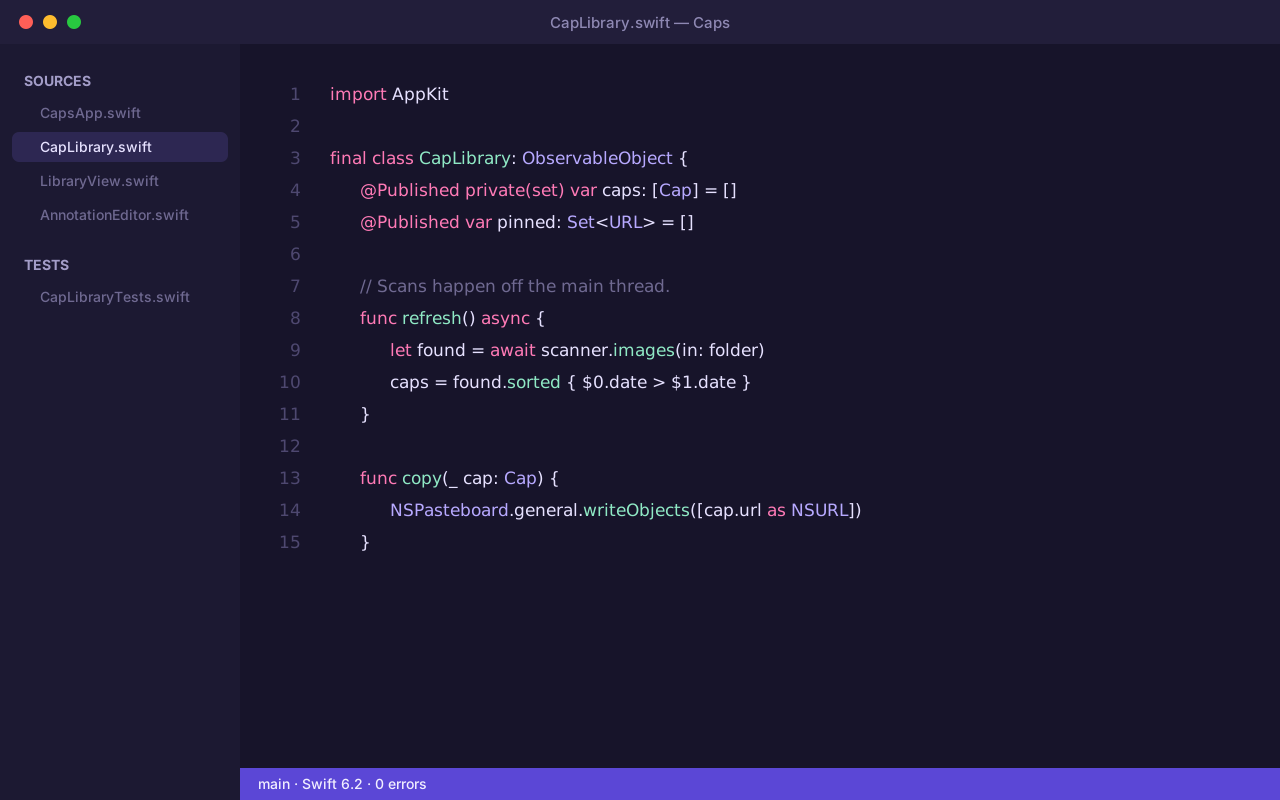
Caps is written in Swift with AppKit and SwiftUI — no web views, no runtimes, no third-party code. It opens fast and feels like it came with your Mac.
Something else on your mind? Visit support or write to us — a real person reads every note.
Never. Caps has no account, no cloud sync, and no analytics. It reads screenshots from a folder on your Mac and that's where they stay.
Not on its own. Your screenshots stay in their original folder. Clear Caps and the retention setting only hide Caps from the list — both can be undone. Renaming happens only when you ask, and Delete Cap moves the file to the macOS Trash so you can still recover it.
Caps starts with the folder macOS saves screenshots to. You can pick a different folder any time from the ellipsis menu or in Settings.
No. Keep using ⇧⌘4, ⇧⌘5, or any tool that saves to your screenshot folder. New Caps appear automatically. ⌘N inside Caps opens the macOS Screenshot toolbar if you want it.
No. Arrows, boxes, drawing, and text are saved to a new full-resolution PNG with Save a Copy — or copied straight to your clipboard. The original Cap is left exactly as it was.
A Mac with Apple silicon running macOS 14 Sonoma or later.
Caps is almost ready for everyone. Leave a note and we'll tell you the moment it's out.
 wallpaper-dusk.png